This repository is no longer maintained and has been archived for provenance.
The project has continued under the name Crush, developed by the original author and the Charm team.
Please follow Crush for ongoing development.

⚠️ Early Development Notice: This project is in early development and is not yet ready for production use. Features may change, break, or be incomplete. Use at your own risk.
A powerful terminal-based AI assistant for developers, providing intelligent coding assistance directly in your terminal.
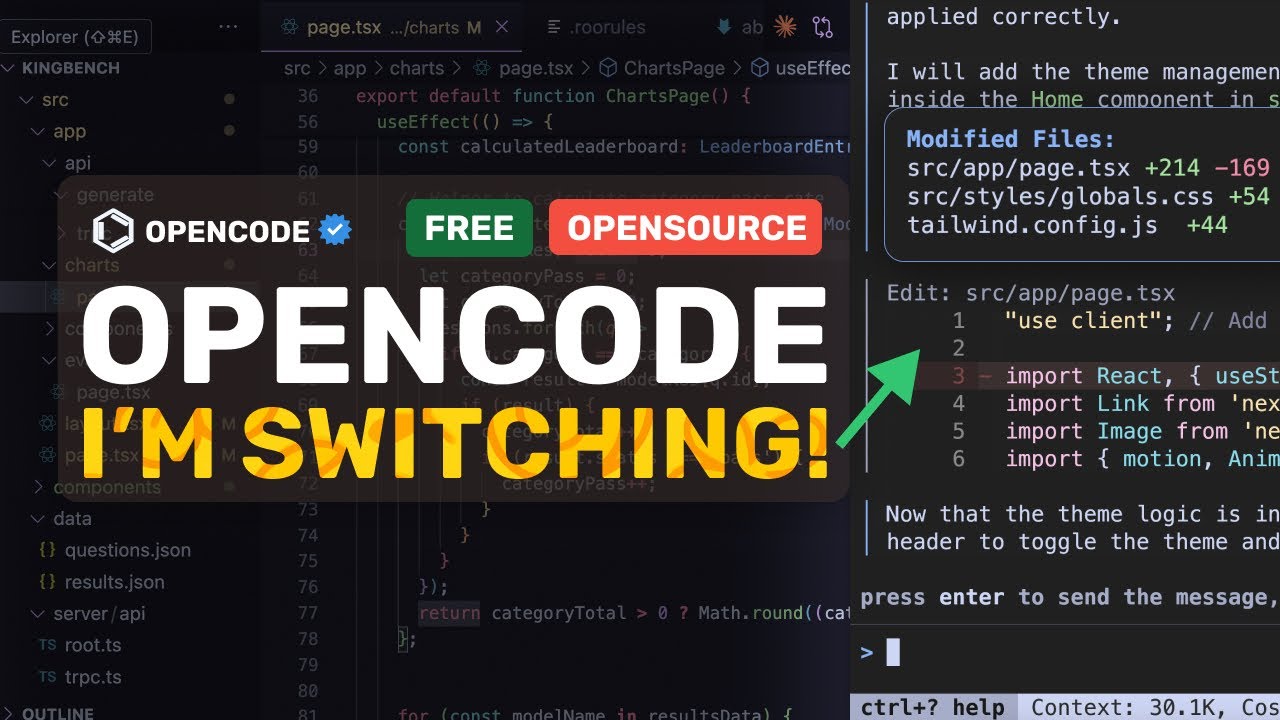
OpenCode is a Go-based CLI application that brings AI assistance to your terminal. It provides a TUI (Terminal User Interface) for interacting with various AI models to help with coding tasks, debugging, and more.
For a quick video overview, check out

- Features
- Installation
- Configuration
- Supported AI Models
- Usage
- Non-interactive Prompt Mode
- Command-line Flags
- Keyboard Shortcuts
- Image Attachments
- AI Assistant Tools
- Architecture
- Custom Commands
- MCP (Model Context Protocol)
- LSP (Language Server Protocol)
- Using Github Copilot
- Using a self-hosted model provider
- Development
- Acknowledgments
- License
- Contributing
- Interactive TUI: Built with Bubble Tea for a smooth terminal experience
- Multiple AI Providers: Support for OpenAI, Anthropic Claude, Google Gemini, AWS Bedrock, Groq, Azure OpenAI, OpenRouter, and xAI
- Session Management: Save and manage multiple conversation sessions
- Tool Integration: AI can execute commands, search files, and modify code
- Vim-like Editor: Integrated editor with text input capabilities
- Image Attachments: Attach images to your messages via the built-in file picker (with image preview)
- Themes: 9 built-in color themes (including Catppuccin, Dracula, Gruvbox, Tokyo Night) with light/dark terminal support
- Persistent Storage: SQLite database for storing conversations and sessions
- LSP Integration: Language Server Protocol support for code intelligence
- File Change Tracking: Track and visualize file changes during sessions
- External Editor Support: Open your preferred editor for composing messages
- Named Arguments for Custom Commands: Create powerful custom commands with multiple named placeholders
- Auto Compact: Automatically summarize the conversation when approaching the model's context window limit
# Install the latest version
curl -fsSL https://raw.githubusercontent.com/opencode-ai/opencode/refs/heads/main/install | bash

# Install a specific version
curl -fsSL https://raw.githubusercontent.com/opencode-ai/opencode/refs/heads/main/install | VERSION=0.1.0 bashbrew install opencode-ai/tap/opencode# Using yay
yay -S opencode-ai-bin
# Using paru
paru -S opencode-ai-bingo install github.com/opencode-ai/opencode@latestOpenCode looks for configuration in the following locations:
$HOME/.opencode.json$XDG_CONFIG_HOME/opencode/.opencode.json./.opencode.json(local directory)
OpenCode includes an auto compact feature that automatically summarizes your conversation when it approaches the model's context window limit. When enabled (default setting), this feature:
- Monitors token usage during your conversation
- Automatically triggers summarization when usage reaches 95% of the model's context window
- Creates a new session with the summary, allowing you to continue your work without losing context
- Helps prevent "out of context" errors that can occur with long conversations
You can enable or disable this feature in your configuration file:
{
  "autoCompact": true // default is true
}You can configure OpenCode using environment variables:
| Environment Variable | Purpose |
|---|---|
ANTHROPIC_API_KEY |
For Claude models |
OPENAI_API_KEY |
For OpenAI models |
GEMINI_API_KEY |
For Google Gemini models |
GITHUB_TOKEN |
For Github Copilot models (see Using Github Copilot) |
VERTEXAI_PROJECT |
For Google Cloud VertexAI (Gemini) |
VERTEXAI_LOCATION |
For Google Cloud VertexAI (Gemini) |
GROQ_API_KEY |
For Groq models |
OPENROUTER_API_KEY |
For OpenRouter models |
XAI_API_KEY |
For xAI (Grok) models |
AWS_ACCESS_KEY_ID |
For AWS Bedrock (Claude) |
AWS_SECRET_ACCESS_KEY |
For AWS Bedrock (Claude) |
AWS_REGION |
For AWS Bedrock (Claude) |
AZURE_OPENAI_ENDPOINT |
For Azure OpenAI models |
AZURE_OPENAI_API_KEY |
For Azure OpenAI models (optional when using Entra ID) |
AZURE_OPENAI_API_VERSION |
For Azure OpenAI models |
LOCAL_ENDPOINT |
For self-hosted models (see Using a self-hosted model provider) |
SHELL |
Default shell to use (if not specified in config) |
OpenCode allows you to configure the shell used by the bash tool. By default, it uses the shell specified in the SHELL environment variable, or falls back to /bin/bash if not set.
You can override this in your configuration file:
{
  "shell": {
    "path": "/bin/zsh",
    "args": ["-l"]
  }
}
This is useful if you want to use a different shell than your default system shell, or if you need to pass specific arguments to the shell.
{
  "data": {
    "directory": ".opencode"
  },
  "providers": {
    "openai": {
      "apiKey": "your-api-key",
      "disabled": false
    },
    "anthropic": {
      "apiKey": "your-api-key",
      "disabled": false
    },
    "copilot": {
      "disabled": false
    },
    "groq": {
      "apiKey": "your-api-key",
      "disabled": false
    },
    "openrouter": {
      "apiKey": "your-api-key",
      "disabled": false
    }
  },
  "agents": {
    "coder": {
      "model": "claude-3.7-sonnet",
      "maxTokens": 5000,
      "reasoningEffort": "high"
    },
    "task": {
      "model": "claude-3.7-sonnet",
      "maxTokens": 5000
    },
    "title": {
      "model": "claude-3.7-sonnet",
      "maxTokens": 80
    }
  },
  "contextPaths": [
    "opencode.md",
    ".cursorrules"
  ],
  "shell": {
    "path": "/bin/bash",
    "args": ["-l"]
  },
  "mcpServers": {
    "example": {
      "type": "stdio",
      "command": "path/to/mcp-server",
      "env": [],
      "args": []
    }
  },
  "lsp": {
    "go": {
      "disabled": false,
      "command": "gopls"
    }
  },
  "tui": {
    "theme": "opencode"
  },
  "debug": false,
  "debugLSP": false,
  "autoCompact": true
}Each agent (coder, summarizer, task, title) supports the following options:
| Option | Description |
|---|---|
model |
Model ID (e.g. claude-3.7-sonnet, gpt-4.1, gemini-2.5) |
maxTokens |
Maximum number of tokens the model can generate (capped at half the model's context window) |
reasoningEffort |
Reasoning effort for models that support it: low, medium, or high (OpenAI and local models) |
OpenCode automatically loads project context from files such as opencode.md, CLAUDE.md, .cursorrules, and .github/copilot-instructions.md at startup. These files' contents are included as system context for the AI assistant.
By default, the following paths are checked:
.github/copilot-instructions.md.cursorrules.cursor/rules/CLAUDE.mdCLAUDE.local.mdopencode.mdopencode.local.mdOpenCode.mdOpenCode.local.mdOPENCODE.mdOPENCODE.local.md
You can override this list with the contextPaths option in your configuration file to point at any custom context files:
{
  "contextPaths": ["docs/conventions.md", ".cursorrules"]
}OpenCode includes 9 built-in color themes with adaptive colors that work on both light and dark terminal backgrounds:
| Theme | Description |
|---|---|
opencode |
The default OpenCode theme |
catppuccin |
Soothing pastel theme |
dracula |
Dark purple theme |
flexoki |
Ink-on-paper theme |
gruvbox |
Retro groove color scheme |
monokai |
Monokai Pro inspired theme |
onedark |
Atom's One Dark theme |
tokyonight |
Tokyo Night theme |
tron |
Tron-inspired theme |
You can change themes at runtime with the Ctrl+T shortcut, or set one permanently in your configuration file:
{
  "tui": {
    "theme": "catppuccin"
  }
}A JSON Schema for the configuration file is available in opencode-schema.json. Reference it from your config file to get validation and autocompletion in editors that support JSON Schema:
{
  "$schema": "https://raw.githubusercontent.com/opencode-ai/opencode/main/opencode-schema.json"
}
To regenerate the schema after changing the configuration code, run:
go run cmd/schema/main.go > opencode-schema.jsonOpenCode supports a variety of AI models from different providers:
- GPT-4.1 family (gpt-4.1, gpt-4.1-mini, gpt-4.1-nano)
- GPT-4.5 Preview
- GPT-4o family (gpt-4o, gpt-4o-mini)
- O1 family (o1, o1-pro, o1-mini)
- O3 family (o3, o3-mini)
- O4 Mini
- Claude 4 Sonnet
- Claude 4 Opus
- Claude 3.5 Sonnet
- Claude 3.5 Haiku
- Claude 3.7 Sonnet
- Claude 3 Haiku
- Claude 3 Opus
- GPT-3.5 Turbo
- GPT-4
- GPT-4o
- GPT-4o Mini
- GPT-4.1
- Claude 3.5 Sonnet
- Claude 3.7 Sonnet
- Claude 3.7 Sonnet Thinking
- Claude Sonnet 4
- O1
- O3 Mini
- O4 Mini
- Gemini 2.0 Flash
- Gemini 2.5 Pro
- Gemini 2.5
- Gemini 2.5 Flash
- Gemini 2.0 Flash
- Gemini 2.0 Flash Lite
- Claude 3.7 Sonnet
- Llama 4 Maverick (17b-128e-instruct)
- Llama 4 Scout (17b-16e-instruct)
- QWEN QWQ-32b
- Deepseek R1 distill Llama 70b
- Llama 3.3 70b Versatile
- GPT-4.1 family (gpt-4.1, gpt-4.1-mini, gpt-4.1-nano)
- GPT-4.5 Preview
- GPT-4o family (gpt-4o, gpt-4o-mini)
- O1 family (o1, o1-pro, o1-mini)
- O3 family (o3, o3-mini)
- O4 Mini
- Claude 3.5 Sonnet / Claude 3.5 Haiku
- Claude 3.7 Sonnet
- Claude 3 Opus / Claude 3 Haiku
- Gemini 2.5 / Gemini 2.5 Flash
- DeepSeek R1 (free)
- Grok 3 (beta)
- Grok 3 mini (beta)
- Grok 3 fast (beta)
- Grok 3 mini fast (beta)
- GPT-4.1 family (gpt-4.1, gpt-4.1-mini, gpt-4.1-nano)
- GPT-4.5 Preview
- GPT-4o family (gpt-4o, gpt-4o-mini)
- O1 family (o1, o1-mini)
- O3 family (o3, o3-mini)
- O4 Mini
- Gemini 2.5
- Gemini 2.5 Flash
- Any model served by an OpenAI-compatible local endpoint (LM Studio, llama.cpp, Ollama, etc.). See Using a self-hosted model provider.
# Start OpenCode
opencode

# Start with debug logging
opencode -d

# Start with a specific working directory
opencode -c /path/to/project

# Print version
opencode -vYou can run OpenCode in non-interactive mode by passing a prompt directly as a command-line argument. This is useful for scripting, automation, or when you want a quick answer without launching the full TUI.
# Run a single prompt and print the AI's response to the terminal
opencode -p "Explain the use of context in Go"

# Get response in JSON format
opencode -p "Explain the use of context in Go" -f json

# Run without showing the spinner (useful for scripts)
opencode -p "Explain the use of context in Go" -q
In this mode, OpenCode will process your prompt, print the result to standard output, and then exit. All permissions are auto-approved for the session.
By default, a spinner animation is displayed while the model is processing your query. You can disable this spinner with the -q or --quiet flag, which is particularly useful when running OpenCode from scripts or automated workflows.
OpenCode supports the following output formats in non-interactive mode:
| Format | Description |
|---|---|
text |
Plain text output (default) |
json |
Output wrapped in a JSON object |
The output format is implemented as a strongly-typed OutputFormat in the codebase, ensuring type safety and validation when processing outputs.
| Flag | Short | Description |
|---|---|---|
--help |
-h |
Display help information |
--version |
-v |
Print version and exit |
--debug |
-d |
Enable debug mode |
--cwd |
-c |
Set current working directory |
--prompt |
-p |
Run a single prompt in non-interactive mode |
--output-format |
-f |
Output format for non-interactive mode (text, json) |
--quiet |
-q |
Hide spinner in non-interactive mode |
| Shortcut | Action |
|---|---|
Ctrl+C |
Quit application |
Ctrl+? |
Toggle help dialog |
? |
Toggle help dialog (when not in editing mode) |
Ctrl+L |
View logs |
Ctrl+S |
Switch session (when editor is not focused) |
Ctrl+K |
Command dialog |
Ctrl+O |
Toggle model selection dialog |
Ctrl+T |
Switch theme |
Ctrl+F |
Select files/images to attach to your message |
Esc |
Close current overlay/dialog or return to previous mode |
| Shortcut | Action |
|---|---|
Ctrl+N |
Create new session |
Ctrl+X |
Cancel current operation/generation |
i |
Focus editor (when not in writing mode) |
Esc |
Exit writing mode and focus messages |
| Shortcut | Action |
|---|---|
Enter or Ctrl+S |
Send message (when editor is focused) |
\ + Enter |
Insert a newline instead of sending |
Ctrl+E |
Open external editor |
Ctrl+R + index |
Delete the attachment at the given index |
Ctrl+R R |
Delete all attachments |
Esc |
Blur editor and focus messages |
Tip: If the last character of your message is a backslash, pressing
Enterinserts a newline instead of sending — useful for composing multi-line messages.
| Shortcut | Action |
|---|---|
↑ or k |
Previous session |
↓ or j |
Next session |
Enter |
Select session |
Esc |
Close dialog |
| Shortcut | Action |
|---|---|
↑ or k |
Move up |
↓ or j |
Move down |
← or h |
Previous provider |
→ or l |
Next provider |
Esc |
Close dialog |
| Shortcut | Action |
|---|---|
← or left |
Switch options left |
→ or right or tab |
Switch options right |
Enter or space |
Confirm selection |
a |
Allow permission |
A |
Allow permission for session |
d |
Deny permission |
| Shortcut | Action |
|---|---|
Backspace or q |
Return to chat page |
OpenCode supports attaching images to your messages, which is useful for sharing screenshots, error messages, or designs with vision-capable models.
- Press
Ctrl+Fto open the file picker and select an image - Supported formats:
.jpg,.jpeg,.png, and.webp - Maximum file size: 5 MB
- Maximum of 5 attachments per message
- Images are previewed directly in the file picker
The selected model must support attachments (most vision-capable models do). Use Ctrl+R followed by an index to remove an attachment, or Ctrl+R R to remove them all.
OpenCode's AI assistant has access to various tools to help with coding tasks:
| Tool | Description | Parameters |
|---|---|---|
glob |
Find files by pattern | pattern (required), path (optional) |
grep |
Search file contents | pattern (required), path (optional), include (optional), literal_text (optional) |
ls |
List directory contents | path (optional), ignore (optional array of patterns) |
view |
View file contents | file_path (required), offset (optional), limit (optional) |
write |
Write to files | file_path (required), content (required) |
edit |
Edit files | Various parameters for file editing |
patch |
Apply patches to files | file_path (required), diff (required) |
diagnostics |
Get diagnostics information | file_path (optional) |
| Tool | Description | Parameters |
|---|---|---|
bash |
Execute shell commands | command (required), timeout (optional) |
fetch |
Fetch data from URLs | url (required), format (required), timeout (optional) |
sourcegraph |
Search code across public repositories | query (required), count (optional), context_window (optional), timeout (optional) |
agent |
Run sub-tasks with the AI agent | prompt (required) |
OpenCode is built with a modular architecture:
- cmd: Command-line interface using Cobra
- internal/app: Core application services
- internal/config: Configuration management
- internal/db: Database operations and migrations
- internal/llm: LLM providers and tools integration
- internal/tui: Terminal UI components and layouts
- internal/logging: Logging infrastructure
- internal/message: Message handling
- internal/session: Session management
- internal/lsp: Language Server Protocol integration
OpenCode supports custom commands that can be created by users to quickly send predefined prompts to the AI assistant.
Custom commands are predefined prompts stored as Markdown files in one of three locations:
-
User Commands (prefixed with
user:):$XDG_CONFIG_HOME/opencode/commands/(typically
~/.config/opencode/commands/on Linux/macOS)or
$HOME/.opencode/commands/ -
Project Commands (prefixed with
project:):<PROJECT DIR>/.opencode/commands/
Each .md file in these directories becomes a custom command. The file name (without extension) becomes the command ID.
For example, creating a file at ~/.config/opencode/commands/prime-context.md with content:
RUN git ls-files
READ README.md
This creates a command called user:prime-context.
OpenCode supports named arguments in custom commands using placeholders in the format $NAME (where NAME consists of uppercase letters, numbers, and underscores, and must start with a letter).
For example:
# Fetch Context for Issue $ISSUE_NUMBER

RUN gh issue view $ISSUE_NUMBER --json title,body,comments
RUN git grep --author="$AUTHOR_NAME" -n .
RUN grep -R "$SEARCH_PATTERN" $DIRECTORY
When you run a command with arguments, OpenCode will prompt you to enter values for each unique placeholder. Named arguments provide several benefits:
- Clear identification of what each argument represents
- Ability to use the same argument multiple times
- Better organization for commands with multiple inputs
You can organize commands in subdirectories:
~/.config/opencode/commands/git/commit.md
This creates a command with ID user:git:commit.
- Press
Ctrl+Kto open the command dialog - Select your custom command (prefixed with either
user:orproject:) - Press Enter to execute the command
The content of the command file will be sent as a message to the AI assistant.
OpenCode includes several built-in commands:
| Command | Description |
|---|---|
| Initialize Project | Creates or updates the OpenCode.md memory file with project-specific information |
| Compact Session | Manually triggers the summarization of the current session, creating a new session with the summary |
OpenCode implements the Model Context Protocol (MCP) to extend its capabilities through external tools. MCP provides a standardized way for the AI assistant to interact with external services and tools.
- External Tool Integration: Connect to external tools and services via a standardized protocol
- Tool Discovery: Automatically discover available tools from MCP servers
- Multiple Connection Types:
- Stdio: Communicate with tools via standard input/output
- SSE: Communicate with tools via Server-Sent Events
- Security: Permission system for controlling access to MCP tools
MCP servers are defined in the configuration file under the mcpServers section:
{
  "mcpServers": {
    "example": {
      "type": "stdio",
      "command": "path/to/mcp-server",
      "env": [],
      "args": []
    },
    "web-example": {
      "type": "sse",
      "url": "https://example.com/mcp",
      "headers": {
        "Authorization": "Bearer token"
      }
    }
  }
}Once configured, MCP tools are automatically available to the AI assistant alongside built-in tools. They follow the same permission model as other tools, requiring user approval before execution.
OpenCode integrates with Language Server Protocol to provide code intelligence features across multiple programming languages.
- Multi-language Support: Connect to language servers for different programming languages
- Diagnostics: Receive error checking and linting information
- File Watching: Automatically notify language servers of file changes
Language servers are configured in the configuration file under the lsp section:
{
  "lsp": {
    "go": {
      "disabled": false,
      "command": "gopls"
    },
    "typescript": {
      "disabled": false,
      "command": "typescript-language-server",
      "args": ["--stdio"]
    }
  }
}The AI assistant can access LSP features through the diagnostics tool, allowing it to:
- Check for errors in your code
- Suggest fixes based on diagnostics
While the LSP client implementation supports the full LSP protocol (including completions, hover, definition, etc.), currently only diagnostics are exposed to the AI assistant.
Copilot support is currently experimental.
- Copilot chat in the IDE enabled in GitHub settings
- One of:
- VSCode Github Copilot chat extension
- Github
ghCLI - Neovim Github Copilot plugin (
copilot.vimorcopilot.lua) - Github token with copilot permissions
If using one of the above plugins or cli tools, make sure you use the authenticate the tool with your github account. This should create a github token at one of the following locations:
- ~/.config/github-copilot/[hosts,apps].json
- $XDG_CONFIG_HOME/github-copilot/[hosts,apps].json
If using an explicit github token, you may either set the $GITHUB_TOKEN environment variable or add it to the opencode.json config file at providers.copilot.apiKey.
OpenCode can also load and use models from a self-hosted (OpenAI-like) provider. This is useful for developers who want to experiment with custom models.
You can use a self-hosted model by setting the LOCAL_ENDPOINT environment variable.
This will cause OpenCode to load and use the models from the specified endpoint.
LOCAL_ENDPOINT=http://localhost:1235/v1You can also configure a self-hosted model in the configuration file under the agents section:
{
  "agents": {
    "coder": {
      "model": "local.granite-3.3-2b-instruct@q8_0",
      "reasoningEffort": "high"
    }
  }
}- Go 1.24.0 or higher
- sqlc (only needed when changing database queries or migrations)
# Clone the repository
git clone https://github.com/opencode-ai/opencode.git
cd opencode

# Build
go build -o opencode

# Run
./opencodego test ./...The SQLite data layer is generated with sqlc. If you change the SQL queries in internal/db/sql/ or the migrations in internal/db/migrations/, regenerate the Go code:
sqlc generateThe configuration lives in sqlc.yaml.
For development, set OPENCODE_DEV_DEBUG=true to write logs to .opencode/debug.log and persist message debugging information:
OPENCODE_DEV_DEBUG=true go run .OpenCode gratefully acknowledges the contributions and support from these key individuals:
- @isaacphi - For the mcp-language-server project which provided the foundation for our LSP client implementation
- @adamdottv - For the design direction and UI/UX architecture
Special thanks to the broader open source community whose tools and libraries have made this project possible.
OpenCode is licensed under the MIT License. See the LICENSE file for details.
Contributions are welcome! Here's how you can contribute:
- Fork the repository
- Create a feature branch (
git checkout -b feature/amazing-feature) - Commit your changes (
git commit -m 'Add some amazing feature') - Push to the branch (
git push origin feature/amazing-feature) - Open a Pull Request
Please make sure to update tests as appropriate and follow the existing code style.